
Colour & temperature
Three columns set a light’s colour: Color, Color Mode and Temp (K). They are on the Standard, Advanced and Texture tabs.
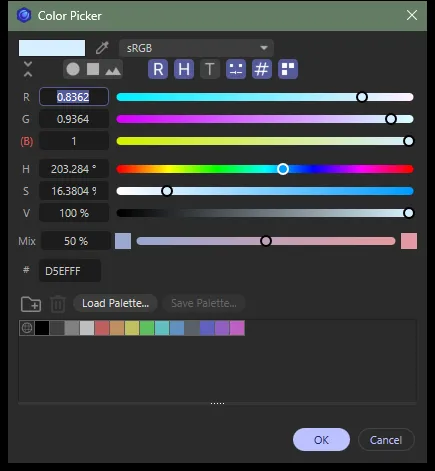
The swatch shows the light’s colour as Cinema 4D shows it, following the scene’s colour management.
- Click the swatch to open Cinema 4D’s colour picker. The colour is applied when you confirm.
- Ctrl+click resets it to white.
- Right-click opens the cell menu — Reset, keys and take overrides. See Editing values.
With several rows selected, picking a colour on one of them sets it on every selected light whose colour mode uses a colour.
Color Mode
Section titled “Color Mode”| Mode | Uses | Greyed out |
|---|---|---|
| Color | The colour swatch | Temp (K) |
| Temperature | The colour temperature | Color |
| Color + Temperature | Both, combined | — |
Temp (K)
Section titled “Temp (K)”The colour temperature in kelvin, from 1000 K to 40,000 K. Lower is warmer (orange), higher is cooler (blue). The default is 6500 K.
The cell works in one of two ways. Choose which in Preferences ▸ Colour Temperature Column ▸ Temp (K) cell.
Preset dropdown (the default)
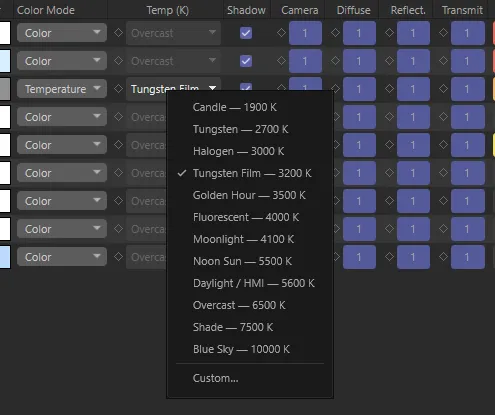
Section titled “Preset dropdown (the default)”The cell shows the name of the preset the value matches, or the value in kelvin when it matches none. Click it to pick a preset:
| Preset | Kelvin |
|---|---|
| Candle | 1900 |
| Tungsten | 2700 |
| Halogen | 3000 |
| Tungsten Film | 3200 |
| Golden Hour | 3500 |
| Fluorescent | 4000 |
| Moonlight | 4100 |
| Noon Sun | 5500 |
| Daylight / HMI | 5600 |
| Overcast | 6500 |
| Shade | 7500 |
| Blue Sky | 10000 |
Choose Custom… at the bottom of the list to type any value.
Slider
Section titled “Slider”The cell is a slider like the other number columns: drag to change it, Shift-drag for fine steps, right-click or double-click to type. See Editing values.
In both modes Temp (K) can be keyed, overridden in a take, and reset with Ctrl+click.
Lights with an RS Light Material
Section titled “Lights with an RS Light Material”For a light driven by an RS Light Material, Color, Color Mode and Temp (K) read and write the material’s graph, and follow the same rules, including the greying by colour mode. Dome, Portal and Physical Sun light materials have a colour (on Portal and Sun, a tint) but no colour mode or temperature.
When a node is wired into the material’s colour, the Color cell reads NODE: the colour comes from the graph, so change it in the Node Editor. See Light material graphs.