Tabs & columns
All four tabs show the same lights — only the columns change. Switch tabs at any time; the panel remembers the last tab you used.
The left-hand block
Section titled “The left-hand block”These columns start every tab:
| Column | What it shows / does |
|---|---|
| (colour chip) | The colour of the light’s Light Group; empty when it has none. Click to recolour the group, Ctrl+click to select every light in it. See Light Group AOVs. |
| (select box) | Tick to add the light to the selection. Ctrl+click selects only this light; Shift+click selects every row from the last one you clicked. |
| Mat | An icon when an RS Light Material drives the light; a warning icon when the material isn’t a valid light material. Double-click to remove the material tag. See Light material graphs. |
| On | The light’s enabled state — the Object Manager’s tick or cross. Click to switch it. |
| Solo | Light the scene with this light alone. See Search, grouping & solo. |
| (type icon) | The light type at a glance. |
| Name | The light’s name. Double-click to rename. |
| Type | The Redshift light type. Pick another to change it; the light is renamed to match (RS Spot Light.1 becomes RS Area Light.1), unless you named it yourself. Not on the Texture tab. |
Compact
Section titled “Compact”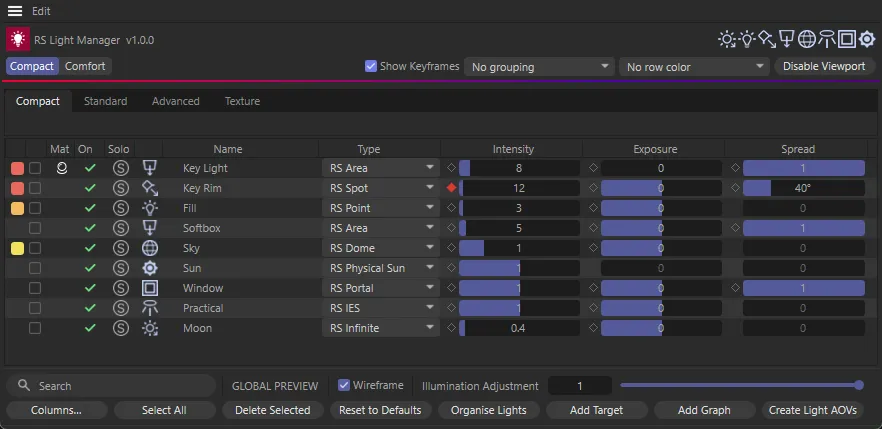
The left-hand block, plus Intensity, Exposure and Spread.
Standard
Section titled “Standard”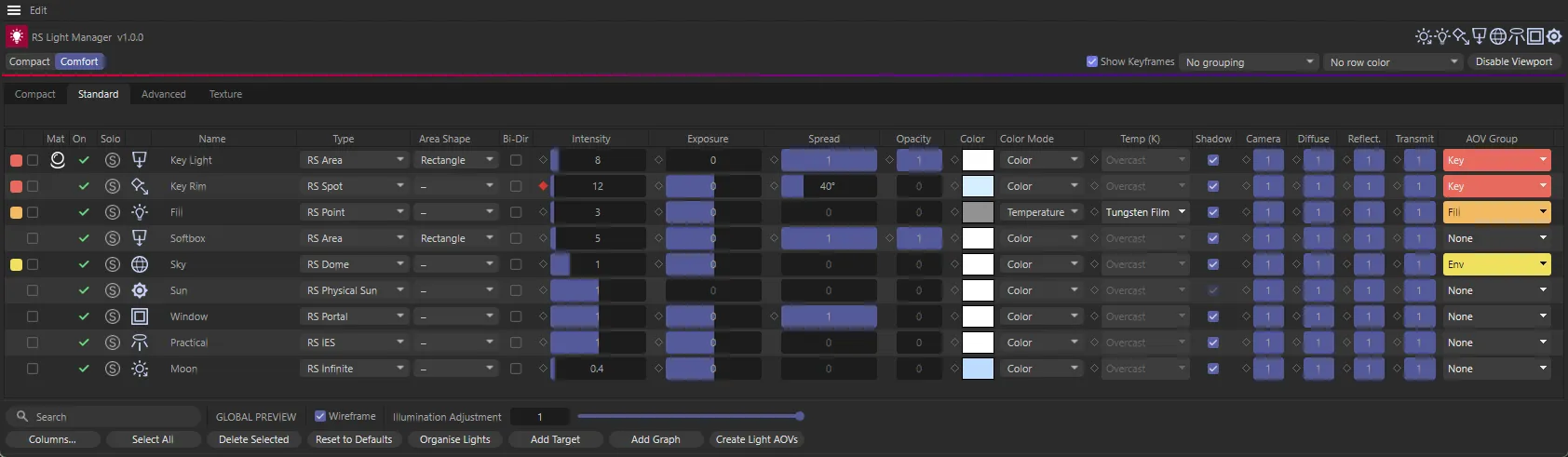
Adds Area Shape, Bi-Dir, Opacity, Color, Color Mode, Temp (K), Shadow, Camera, Diffuse, Reflect., Transmit and AOV Group.
Advanced
Section titled “Advanced”
Everything on Standard, plus Sh.Trans, Softness, Matte Shd, Aff. Refr., GI Trace, Samples, Vol Smp, S.Scatter, M.Scatter, Volume, GI, Toon Diff, Toon Refl, Caustics, Ovr Refr, Caust Int and Photon M.
Texture
Section titled “Texture”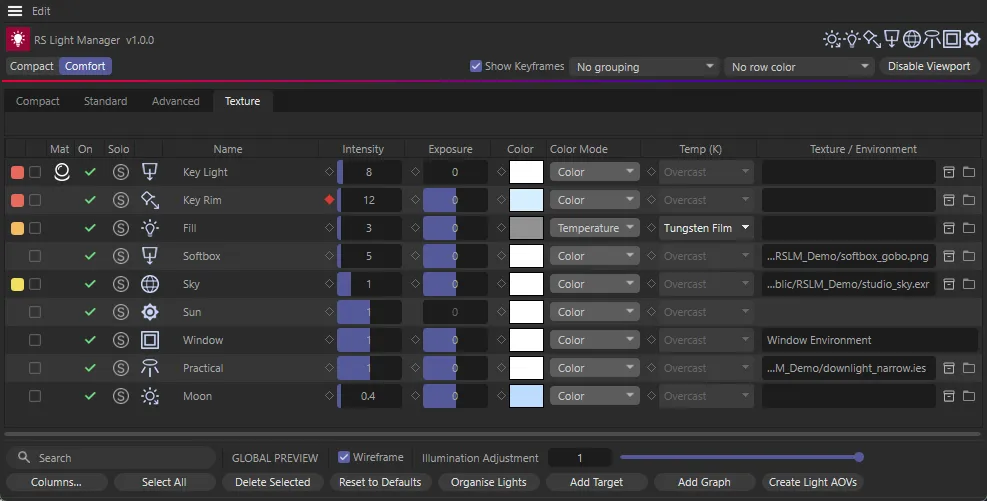
The left-hand block without Type, plus Intensity, Exposure, Color, Color Mode, Temp (K) and Texture / Environment. See Textures & environments.
Column reference
Section titled “Column reference”The slider range is how far a drag goes. You can type values beyond it for Intensity and Exposure; the other columns stop at the range shown.
| Column | Meaning | Applies to | Range / values |
|---|---|---|---|
| Intensity | Light intensity (the multiplier on Dome, IES, Portal and Physical Sun) | All | Slider by type: Spot and Point 0–100,000; Area 0–100; Infinite 0–10; Dome 0–5; IES, Portal and Sun 0–2 |
| Exposure | Exposure in stops | All except Physical Sun | Slider −10 to 10 (Dome −8 to 8) |
| Spread | Area and Portal: spread. Spot: cone angle in degrees | Spot, Area, Portal | 0–1; Spot 0–180° |
| Area Shape | Shape of an area light | Area | Rectangle, Disc, Sphere, Cylinder, Mesh |
| Bi-Dir | Emit from both sides | Area | On / off |
| Opacity | Area light opacity | Area | 0–1 |
| Color | Light colour; click to pick | All | Colour picker |
| Color Mode | How the colour is set | All | Color, Temperature, Color + Temperature |
| Temp (K) | Colour temperature | All | 1000–40,000 K, or presets — see Colour & temperature |
| Shadow | Cast shadows | All except Physical Sun | On / off |
| Sh.Trans | Shadow transparency | All | 0–1 |
| Softness | Shadow softness | All; greyed on Area, Dome and Portal | 0–100 |
| Matte Shd | Matte shadow | All | On / off |
| Aff. Refr. | Affected by refraction | All | Never, Auto, Always |
| GI Trace | GI max trace depth | All | 0–255 |
| Samples | Light samples | All; greyed while Redshift’s Automatic Sampling is on | 1–8192 |
| Vol Smp | Volume samples | As Samples | 1–8192 |
| Camera | Camera contribution | All | 0–1 |
| Diffuse | Diffuse contribution | All | 0–1 |
| Reflect. | Reflection contribution | All | 0–1 |
| Transmit | Transmission contribution | All | 0–1 |
| S.Scatter | Single-scattering contribution | All | 0–1 |
| M.Scatter | Multiple-scattering contribution | All | 0–1 |
| Volume | Volume contribution | All | 0–1 |
| GI | GI contribution | All | 0–1 |
| Toon Diff | Toon diffuse contribution | All | 0–1 |
| Toon Refl | Toon reflection contribution | All | 0–1 |
| Caustics | Cast caustics | All | Off, Render Settings, On |
| Ovr Refr | Override refraction shadows | All | On / off |
| Caust Int | Caustics intensity | All | 0–1,000,000 |
| Photon M | Photon multiplier | All | 0–1,000,000 |
| AOV Group | The light’s Light Group; click for the menu | All | See Light Group AOVs |
| Texture / Environment | Texture file, or a Portal’s environment shader | All except Physical Sun | See Textures & environments |
Why is a cell greyed out?
Section titled “Why is a cell greyed out?”| Reason | Example |
|---|---|
| The setting doesn’t exist for this light type | Exposure on a Physical Sun; Area Shape on a Spot |
| The light type turns it off | Softness on Area, Dome and Portal lights |
| The colour mode | Temp (K) is greyed in Color mode; Color is greyed in Temperature mode |
| Redshift’s Automatic Sampling is on | Samples and Vol Smp — click the cell to turn Automatic Sampling off |
| The current take locks it | See Keyframes & takes |
A Color cell that reads NODE belongs to a light whose material has a node wired into its colour — the colour comes from the node graph, so set it there.
Choosing columns
Section titled “Choosing columns”Every tab has its own set of columns. Click Columns… in the action bar to choose which columns the current tab shows.
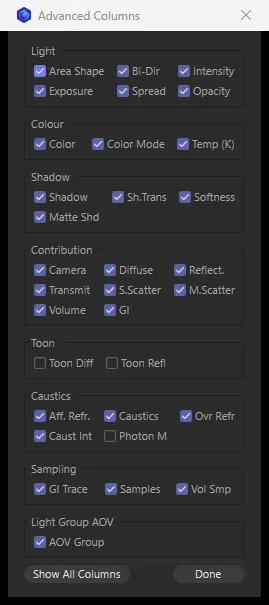
- Columns are grouped like the Redshift light’s own settings: Light, Colour, Shadow, Contribution, Toon, Caustics, Sampling and Light Group AOV. Only the sections with columns on the current tab are listed.
- Untick a column to hide it. The table updates as you click, and a floating panel narrows to match.
- Show All Columns brings every column back. Done closes the window.
- The left-hand block — chip, select box, Mat, On, Solo, type icon, Name and Type — is always shown.
Your choices are saved for each tab and kept between sessions.
The Show Spread / Cone Angle column preference hides the Spread column on every tab at once. See Preferences.