Search, grouping & solo
Search
Section titled “Search”The Search field sits under the table, on the left. Type part of a light’s name and only the matching rows are shown; upper and lower case don’t matter. Clear the field (the × in it) to show every light again.
Edits on selected rows only reach the rows you can see, so a selected light hidden by the search is left alone.

Group by
Section titled “Group by”Choose a grouping from Group by in the view bar. Each group gets a header row with its name and how many lights it holds.
| Option | Groups lights by | Lights without one |
|---|---|---|
| No grouping | — one flat list, in Object Manager order | — |
| Group by Type | Redshift light type | — |
| Group by Layer | Cinema 4D layer, A to Z | Last, under No Layer |
| Group by Light Group | Light Group, A to Z | Last, under No Light Group |
| Group by Take | The takes that change them | Last, under Not in any take |

Group by Take
Section titled “Group by Take”Group by Take shows, for every take below Main, the lights that take changes:
- Each take is a header, written as its path in the Take Manager (for example Night / Moon only). The active take is marked [current].
- After each light’s name, in brackets, is what the take changes: light settings
(
light: Intensity, Color) and light-material settings (graph: …). - A light changed by several takes appears under each of them. Editing it still changes the light once.
- Lights no take changes are listed last, under Not in any take.
The view follows overrides as you add or remove them in the Take Manager.
![Group by Take: Night marked [current], the overridden parameters noted after each name, and Not in any take at the bottom](/rs-light-manager/_astro/group-by-take.CoV1m-U__ZcM9SF.webp)
See Keyframes & takes.
Row colour
Section titled “Row colour”Row colour in the view bar tints every row, so related lights are easy to spot:
| Option | Tint |
|---|---|
| No row color | Plain rows |
| Color by Layer | The colour of the light’s Cinema 4D layer |
| Color by Light Group | The colour of the light’s Light Group (see Light Group AOVs) |
Your choice is remembered between sessions.

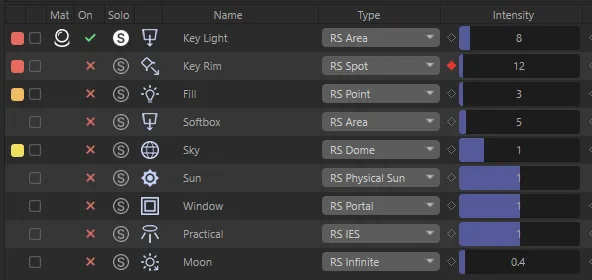
Click a light’s Solo icon to light the scene with it alone — every other Redshift light in the scene is switched off.
- Solo more lights by clicking their Solo icons too.
- Click a lit Solo icon again to un-solo it. When no light is soloed, every light goes back to the on/off state it had before you started.
- Solo acts on the whole scene, including lights hidden by the search.
- A light that was already off stays off while soloed.
Solo works through each light’s On switch, so the lights it turns off show as off in the On column and the Object Manager while solo is active.
On / off and the viewport
Section titled “On / off and the viewport”- On — click to switch a light on or off (the Object Manager’s tick or cross). If the row is selected, every selected light switches.
- Disable Viewport / Enable Viewport (view bar) — hides or shows every Redshift light in the editor viewport. Rendering is not affected.