Troubleshooting & FAQ
The panel
Section titled “The panel”A light isn’t listed. The panel lists Redshift lights only — RS Infinite, Point, Spot, Area, Dome, IES, Portal and Physical Sun. Cinema 4D’s standard lights aren’t shown. Also check the Search field is empty.
The panel changes width when I switch tabs. That is a floating panel fitting each tab (Windows only). Turn it off in Preferences ▸ Fit floating panel width to each tab. A docked panel is never resized.
The panel disappeared when I ran its menu command. Running the command while the panel is showing folds it away. Run it again to unfold it in the same place.
Where are the preferences? In the panel’s own menu bar: Edit ▸ Preferences….
Values and cells
Section titled “Values and cells”A cell is greyed out. The setting doesn’t apply to that light type, the colour mode turns it off, Redshift’s Automatic Sampling is on (Samples, Vol Smp), or the current take locks it. See Why is a cell greyed out?
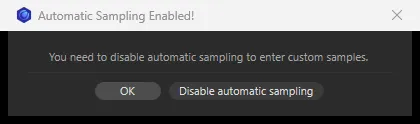
Samples and Vol Smp are greyed out. Redshift’s Automatic Sampling is on in the render settings, so per-light samples are ignored. Click the cell: Automatic Sampling Enabled! offers to Disable automatic sampling.
I changed a value but only one light changed. Edits reach every selected light only when you edit a selected row. Select the lights first, then edit one of the selected rows. Lights hidden by the search are never changed.
I changed a value and several lights changed. Either the row you edited was part of a selection, or the lights share one RS Light Material. See Shared materials.
A value I typed came out different. Values are kept within the column’s range; Intensity and Exposure allow more than the slider shows. When you edit Intensity across lights of different types, each light stays within its own slider range. See the Column reference.
The Color cell says NODE. A node is wired into the light material’s colour, so the colour comes from the graph. Change it in the Node Editor.
Lights are still off after I soloed one. Click the lit Solo icon again to un-solo; the other lights go back to how they were. If you closed the panel or the scene while a light was soloed, switch the other lights back on yourself in the On column (select them all and click one On cell).
Keyframes and takes
Section titled “Keyframes and takes”There are no key diamonds. Tick Show Keyframes in the view bar.
Every edit sets a key. Cinema 4D’s Autokeying is on. The panel follows it, just like the Attribute Manager.
Cells are greyed out in a take and I can’t edit them. The Take Manager’s Lock Overrides is on and Auto Take is off. Right-click the slider’s left edge and choose Override in ‘take’, or turn on Auto Take. See Takes.
I can’t override a material-driven value in a take. Light-material values can’t be overridden from the table. Use the Take Manager or the material’s Attribute Manager.
Textures
Section titled “Textures”Dropping an image does nothing. Check the light takes a texture (not a Portal or Physical Sun) and the file is one of the supported image types.
My texture comes back after I clear it. A tag on the light may be putting it back. The panel removes Greyscale Gorilla HDRI Link Plus tags when you clear a texture; check the light for other tags that set its texture.
Light Group AOVs
Section titled “Light Group AOVs”Create Light AOVs says no Light Group names are set. No light has a Light Group yet. Assign one in the AOV Group column first.
Create Light AOVs says the render settings don’t use Redshift. Set the active render settings’ renderer to Redshift.
A layer under Light AOVs vanished. A group’s layer is removed when no light uses the group. It comes back when you assign the group again.
Some lights moved into a group when I clicked Apply. Lights that are selected when you apply the Create Light AOVs window go into the first ticked group. Deselect them first if you don’t want that. See Create the AOVs.
Licensing
Section titled “Licensing”The licence window opens every time I open the panel.
The panel isn’t licensed on this computer yet. Enter your serial, or type trial to start the
trial. See Licensing & support.
Activation fails. See When activation fails.
I’m moving to a new computer. Open the licence window (the plugin icon at the top left of the panel, or Edit ▸ License…), click Deactivate License, then activate on the new machine.
It says RS Light Manager could not be verified. Reinstall RS Light Manager from your original download — the aescripts + aeplugins manager app makes this easy. If the message stays, contact support.
Still stuck?
Section titled “Still stuck?”Open a support ticket from the RS Light Manager product page on aescripts.com with your Cinema 4D version, Redshift version, operating system, the RS Light Manager version (shown in the panel’s title) and a short description or screenshot.