
Licensing & support
RS Light Manager is sold through aescripts + aeplugins.
Activating
Section titled “Activating”The easiest way to install and license RS Light Manager is the aescripts + aeplugins manager app.
The first time you open the panel in Cinema 4D, the aescripts licence window asks for your serial number. Paste it in and confirm — the panel opens straight away.
The trial
Section titled “The trial”To try RS Light Manager first, type trial in the licence window instead of a serial number.
The trial runs for 14 days. When you buy, open the licence window again and enter your
serial — your scenes are unaffected.
Seeing your licence
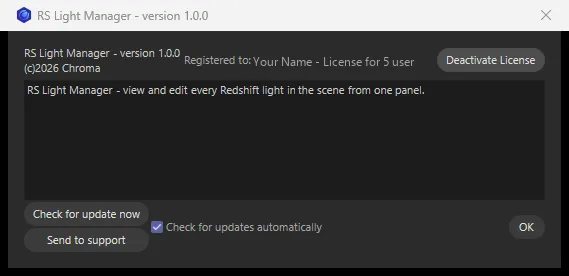
Section titled “Seeing your licence”Click the plugin icon at the top left of the panel, or choose Edit ▸ License… from the panel’s menu bar. The licence window shows Registered to … with the name the licence belongs to.
Moving to another computer
Section titled “Moving to another computer”Deactivate first, then activate on the new machine:
- Open the licence window (the header icon, or Edit ▸ License…).
- Click Deactivate License.
- On the new computer, install RS Light Manager and enter your serial when asked.
When activation fails
Section titled “When activation fails”- Check the serial is complete — copy it straight from your aescripts account rather than typing it.
- Make sure the computer is online while you activate.
- Moving from another computer? Deactivate the licence there first.
Still stuck? Open a support ticket from the RS Light Manager product page on aescripts.com. Include your Cinema 4D and Redshift versions, and your operating system.
Bought on Gumroad?
Section titled “Bought on Gumroad?”Copies bought from Chroma on Gumroad keep working, and install through the Chroma Plugin Manager.
- Activate: the first time you open the panel, the Activate RS Light Manager window asks for your Gumroad licence key. Paste it and click Activate. Activation needs an internet connection.
- See or remove it: click the plugin icon at the top left of the panel (or Edit ▸ License…). The RS Light Manager License window shows who the licence is registered to, the start of the key and the version. Click Deactivate to remove it from this machine — do that before you move to a new computer.
For Gumroad licences, contact Chroma at chroma.london.
Support
Section titled “Support”Questions or problems? Open a support ticket from the RS Light Manager product page on aescripts.com. The Troubleshooting & FAQ page covers the common questions.
RS Light Manager © Chroma Studios Ltd · chroma.london