Textures & environments
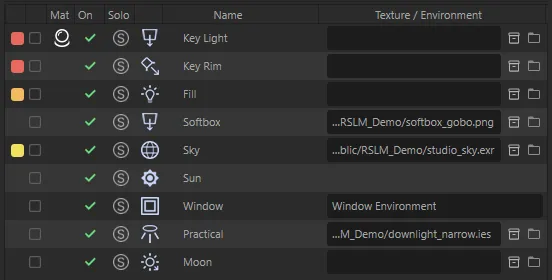
The Texture / Environment column on the Texture tab loads an image into a light, or shows the environment shader a Portal light is linked to.
| Light type | The cell holds |
|---|---|
| RS Infinite, Point, Spot, Area | A texture image |
| RS Dome | An HDRI or other image |
| RS IES | The IES profile |
| RS Portal | The linked environment shader |
| RS Physical Sun | Nothing — the cell is empty |
The texture field
Section titled “The texture field”The cell looks like Cinema 4D’s own file field: the path on the left — shortened from the start when it doesn’t fit, so the file name stays visible — then an Asset Browser button and a folder button.
| To… | Do this |
|---|---|
| Choose a file | Click the folder button. The file browser opens in the current texture’s folder |
| Pick from the Asset Browser | Click the Asset Browser button, then select an image asset in the Asset Browser |
| Get more options | Click the field itself (see below) |
| Load by dragging | Drag an image file from Explorer or Finder onto the light’s row |
The field menu
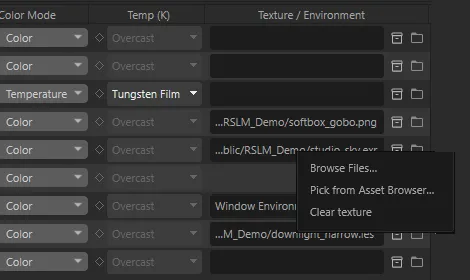
Section titled “The field menu”Clicking the field opens a menu:
| Item | What it does |
|---|---|
| Browse Files… | Choose a file |
| Pick from Asset Browser… | Open the Asset Browser and use the asset you select |
| Show in Explorer / Show in Finder | Open the folder that holds the file. Only shown when the file exists |
| Clear texture | Remove the texture from the light. Only shown when there is one |
Dragging files
Section titled “Dragging files”You can drop these image types onto a row: .hdr, .exr, .tif, .tiff, .png, .jpg,
.jpeg, .tx, .tga, .bmp, .psd, .dds, .b3d and .iff. Drops on Portal and Physical
Sun rows are ignored.
Several lights at once
Section titled “Several lights at once”If the row is selected, choosing, dropping or clearing a texture does the same to every selected light that takes one, as one undo step.
A texture or a light material — not both
Section titled “A texture or a light material — not both”A texture and an RS Light Material shouldn’t drive the same light, so the panel asks before mixing them:
- Loading a texture onto a light that has a light material: Yes, remove material tag or No.
- Adding a light material (Add Graph) to a light that has a texture: Yes, remove texture or No.
When you clear a texture, any Greyscale Gorilla HDRI Link Plus tag on the light is removed too, so it doesn’t load the texture again.
Portal lights: the environment shader
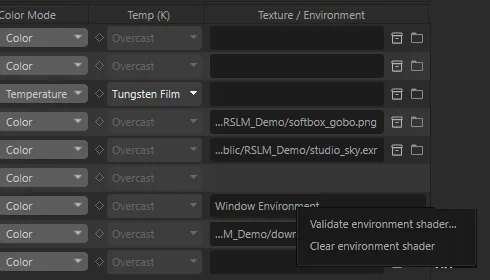
Section titled “Portal lights: the environment shader”On a Portal row the cell shows the name of the linked environment shader. Click it for:
| Item | What it does |
|---|---|
| Create environment shader… | Creates a new Redshift environment material in the scene. Shown when nothing is linked |
| Validate environment shader… | Checks the linked shader. Shown when one is linked |
| Clear environment shader | Removes the link. Undoable |
Link the new shader to the portal in the portal’s Attribute Manager; the cell then shows its name.
If the linked shader isn’t a Redshift environment shader, the cell adds (not an environment shader) after its name. Validating it opens Warning, Invalid Environment Shader, where Create environment shader makes a correct Redshift environment material for you to link instead.