
Light Group AOVs
Redshift can render each group of lights to its own AOV, so you can rebalance the lighting in compositing. RS Light Manager lets you assign the groups from the table and creates the matching AOVs for you.
The workflow:
- Give lights a Light Group in the AOV Group column.
- Click Create Light AOVs and choose the passes.
- Render. Redshift writes one layer per light group.
Assign a Light Group
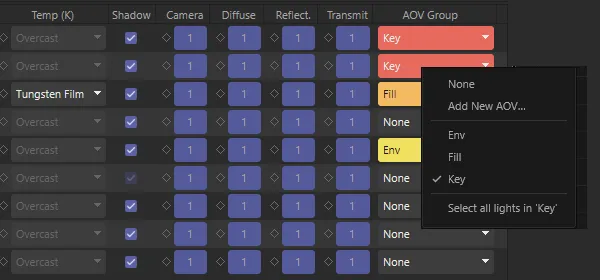
Section titled “Assign a Light Group”The AOV Group column (Standard and Advanced tabs) shows each light’s group as a pill in the group’s colour, or None.
Click the cell for its menu:
| Item | What it does |
|---|---|
| None | Take the light out of its group |
| Add New AOV… | Create a group: type a name (it starts as LightGroup, LightGroup.1, …) and click OK |
| A group’s name | Put the light in that group. The current group is ticked |
| Select all lights in ‘group’ | Select every light in this light’s group |
If the row is selected, your choice applies to every selected light, as one undo step.
Light Group colours and layers
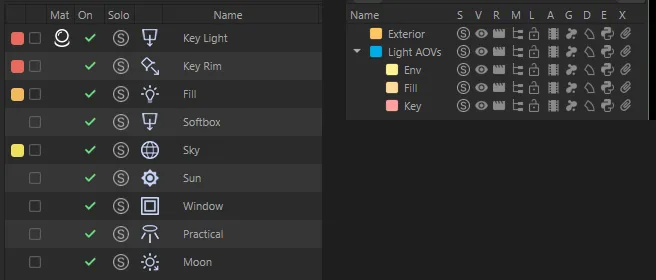
Section titled “Light Group colours and layers”Each Light Group is mirrored as a Cinema 4D layer, so you can use the Layer Manager’s solo and visibility switches per group:
- The layers sit under a parent layer called Light AOVs, one per group, named after it.
- A light in a group is put on that group’s layer.
- New groups get a colour automatically. It shows in the colour chip at the start of the row, in the AOV Group pill, and in the row tint when Row colour is Color by Light Group.
- A group’s layer is removed when no light uses the group any more, and made again if you use the name again.
| To… | Do this |
|---|---|
| Recolour a group | Click a light’s colour chip and pick a colour — every light in the group follows. You can also change the layer’s colour in the Layer Manager |
| Select every light in a group | Ctrl+click the colour chip, or use Select all lights in ‘group’ in the AOV Group menu |
Lights already on a layer
Section titled “Lights already on a layer”If a light is already on one of your own layers when you give it a group, the panel asks what to do (Light Already on a Layer):
| Choice | Result |
|---|---|
| Move to AOV layer | The light moves onto the group’s layer |
| Keep current layer | The light stays on its layer; the group is still set |
| Cancel | Nothing changes |
Tick Don’t remind me about this again until I reopen this project or Set as a permanent preference to stop the question.
Create the AOVs
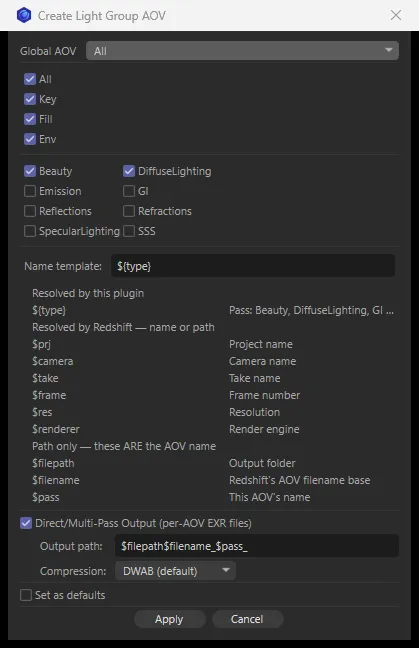
Section titled “Create the AOVs”Click Create Light AOVs in the action bar. Once the panel has made Light Group AOVs in the scene, the button reads Update Light AOVs, and the window opens with the scene’s current light groups and output settings ticked.
If no light has a group yet, you are asked to assign one first. The active render settings must use Redshift.
| Setting | What it does |
|---|---|
| Global AOV | Redshift’s Global AOV option for these AOVs: None, All or Remainder |
| Light Groups | Tick the groups to include. All ticks or clears every group |
| Render Passes | One AOV is made per ticked pass: Beauty, DiffuseLighting, Emission, GI, Reflections, Refractions, SpecularLighting, SSS. Beauty is ticked to start with |
| Name template | How each AOV is named (tokens below). The default, ${type}, names each after its pass |
| Direct/Multi-Pass Output (per-AOV EXR files) | Off: the AOVs go into Redshift’s multi-pass output. On: each AOV is written to its own OpenEXR file, and two more settings appear |
| Output path | Direct output only. Where each file is written. The default, $filepath$filename_$pass_, matches what Redshift uses for an AOV you make by hand |
| Compression | Direct output only. EXR compression: None, Default (Redshift), RLE, ZIP, ZIPS, PIZ, PXR24, B44, DWAA, DWAB. DWAB is the default |
| Set as defaults | Save these settings as the starting point for next time (also in Preferences) |
Click Apply. The panel then:
- Creates or updates one AOV per ticked pass in the active Redshift render settings, carrying the ticked Light Groups. Passes it made earlier that you have now unticked are removed; AOVs you made yourself are left alone.
- Puts any lights you have selected into the first ticked group.
- Opens Redshift’s AOV Manager so you can check the result.
If you tick more than one pass and the name template has no ${type}, _${type} is added so each
AOV gets its own name.
Name and path tokens
Section titled “Name and path tokens”| Token | Filled in by | Meaning |
|---|---|---|
${type} |
RS Light Manager | The pass: Beauty, DiffuseLighting, GI … |
$prj |
Redshift | Project name |
$camera |
Redshift | Camera name |
$take |
Redshift | Take name |
$frame |
Redshift | Frame number |
$res |
Redshift | Resolution |
$renderer |
Redshift | Render engine |
$filepath |
Redshift (path only) | Output folder |
$filename |
Redshift (path only) | Redshift’s AOV file name base |
$pass |
Redshift (path only) | This AOV’s name |
$pass and $userpass can’t be used in the name template — Redshift fills them in with the
AOV’s own name, so the name would nest inside itself. If you type one, the panel removes it and
tells you. Use them in the output path instead.